
Service Principal (Client Secret)
Follow these steps to enable the Entra directory scan tasks to access Entra directory using a service principal with a client secret.
For more information see
https://learn.microsoft.com/entra/identity-platform/howto-create-service-principal-portal
- Logon to the Entra Admin Center as a user account with the sufficient permissions.
- Go to Microsoft Entra ID > App Registrations > New Registration.
- Enter an appropriate name for the application - for example "XIA Configuration Server".
- For supported account types select
Accounts in this organizational directory only - Do not specify a Redirect URI.
- Click Register.
- Make a note of the following values
Application (client) ID
Directory (tenant) ID - Go to Certificates & secrets > Client secrets.
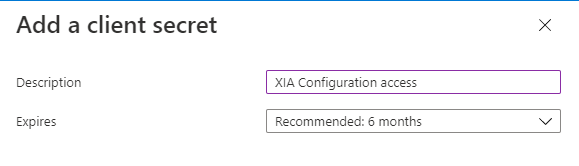
- Click New Client Secret.
- Enter a description and appropriate expiry, and click Add.
- Copy and record the client secret value. This value is only available at this point.
- Go to API Permissions.
- Click Add a permission > Microsoft APIs > Microsoft Graph.

- Select Application Permissions when prompted.
- Select the following permissions:
- Agreement.Read.All
- Directory.Read.All
- NetworkAccess.Read.All
- Organization.Read.All
- Policy.Read.All
- RoleManagement.Read.Directory
- Click the Add Permissions button.
- Click the Grant admin consent link.
