
Manual Uninstallation Instructions
WARNING:
You should always remove XIA Configuration Client using the uninstallation instructions unless there is a problem preventing this process from completing.
Using Registry Editor incorrectly can cause serious problems that may require you to reinstall your operating system.
These instructions are provided as guidance only and are completed at your own risk. If you have any questions or concerns, do not proceed, instead, log a support call at the following address https://www.centrel-solutions.com/support/log-support-call.
Manual Uninstallation Steps
- Ensure you have a full backup of your system.
- If the XIA Configuration Client is installed as part of the XIA Configuration Server please follow the manual uninstallation instructions for XIA Configuration Server.
- Logon as an administrator.
- Start a command prompt as administrator:

- Remove the client service with the following command (replacing the path with your installation path):
"C:\Program Files\CENTREL Solutions\XIA Configuration\XIA Configuration Service\CENTREL.XIA.Configuration.Service.exe" -uninstall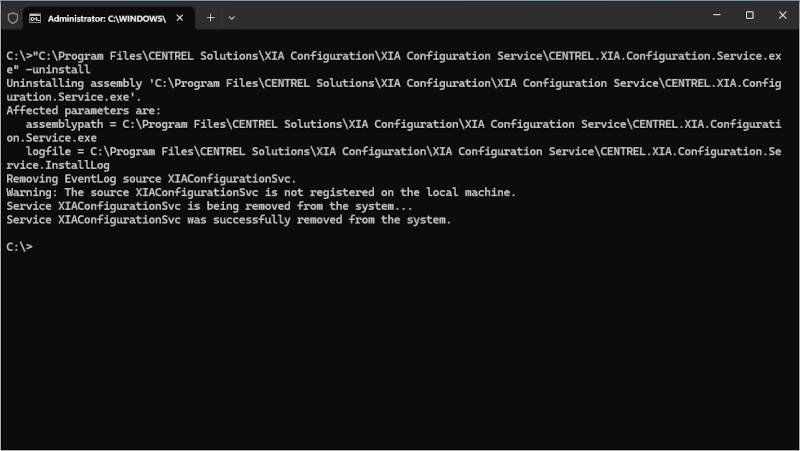
- Ensure that the command states that the service has been successfully removed from the system.
- Start PowerShell within the administrator command prompt.
- Within the administrator PowerShell command prompt enter the following command to determine the installed product code and name.
Get-ItemProperty "HKLM:\SOFTWARE\Microsoft\Windows\CurrentVersion\Uninstall\*" | Where-Object { $_.DisplayName -eq "XIA Configuration Client" } | Select-Object PSChildName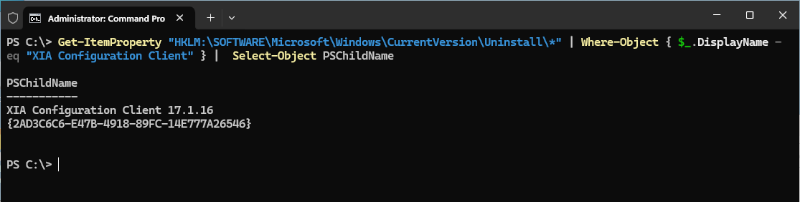
- Remove the registry keys (replacing the Product Code or name with the PSChildName values from above)
HKEY_LOCAL_MACHINE\SOFTWARE\Microsoft\Windows\CurrentVersion\Uninstall\Product Code or name (PSChildName from step above) - Within the administrator PowerShell command prompt enter the following command to determine the installed product squished GUID.
Get-ItemProperty "HKLM:\SOFTWARE\Classes\Installer\Products\*" | Where-Object { $_.ProductName -eq "XIA Configuration Client" } | SELECT PSChildName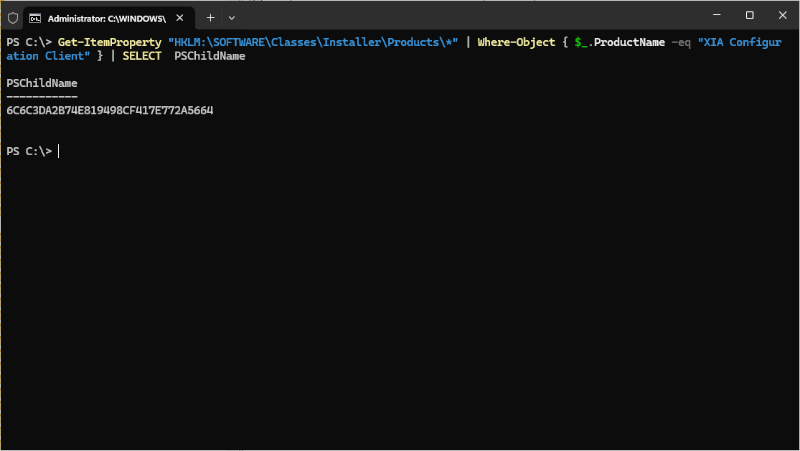
- Remove the registry key (replacing the Product Squished GUID with the PSChildName number found above):
HKEY_LOCAL_MACHINE\SOFTWARE\Classes\Installer\Products\Product Squished GUID (PSChildName from step above) - Remove the service installation directory (replacing the path with your installation path):
C:\Program Files\CENTREL Solutions\XIA Configuration\XIA Configuration Service - Remove the common installation directory (replacing the path with your installation path):
C:\Program Files\CENTREL Solutions\XIA Configuration\Common
- Remove the registry key:
HKEY_LOCAL_MACHINE\SOFTWARE\CENTREL Solutions\XIA Configuration Service
- Manually delete any desktop and start menu shortcuts.
- Certain shared roles and features and prerequisites are automatically installed by the product, you may need to review these and remove them manually if they are no longer required.
- Reboot the system when ready.